
In sequence
Guide: the seven stages of a Lolobuy order
One order, start to finish, in the order the steps actually happen. Each stage links to the Lexicon entry for any term it introduces, so you can jump sideways without losing your place.
Watch first
The official walkthrough
Lolobuy's own channel has one tutorial that covers this entire flow in just over a minute. It skips the screens below rather than replacing them — watch it for the overall shape of the process, then use the written steps for the parts a fast screen recording moves past too quickly to read.
Step by step
Seven stages, in order
Create an account
Sign up with email, or use Google or Apple sign-in — see the Lexicon's sign-in entry for what each one commits you to. Lolobuy's registration is a modal on the homepage rather than a separate page, so there is no standalone sign-up URL to bookmark.
Find the listing and submit it
Paste a product link from a Chinese marketplace, or search by keyword or by uploading a photo. This site's own catalogue is a faster way to browse than searching marketplace apps directly if you do not already know what you want; once you find a card worth buying, take the original listing to Lolobuy's own paste-a-link flow rather than submitting the catalogue card itself.
Confirm specs and pay
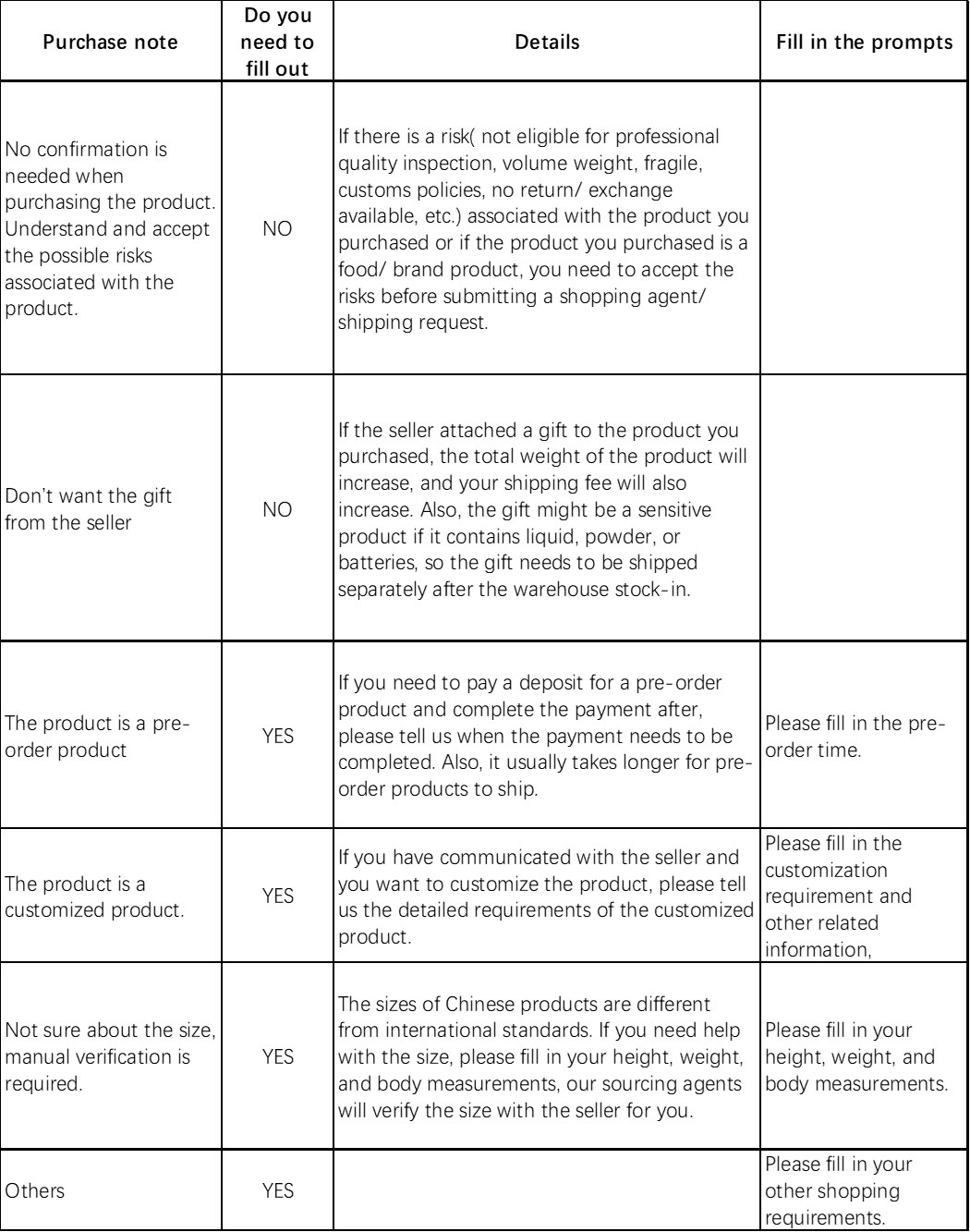
Choose size, colour and quantity, add any purchase notes the pre-order or customised-product fields call for, then pay with whichever payment channel is offered to your account. This is also where you decide whether to add ShipCare later, once the item reaches the warehouse, rather than at this step.
Inspection and storage
Once the seller ships to the warehouse, Lolobuy runs its free standard inspection and takes QC photos. The order status moves to Stored once it is weighed and shelved — note that status, because it starts one of the two return-window clocks described on the QC page.
Choose packaging, submit the parcel
Pick free options like minimalist packaging or shoe-box removal if you want to cut weight before freight is calculated, then submit the parcel for shipment. If you are combining several stored items into one shipment, this is also where that happens.
Pick a line and pay freight
Lolobuy shows the eligible shipping lines for your destination and weight — the same data this site's own line finder is built from a dated snapshot of. Decide on ShipCare here if you have not already, since it is attached per shipment rather than per item.
Track and sign for delivery
Once a line is paid, the parcel moves into transit with a tracking reference. If anything arrives wrong, the return/exchange window entry explains the two different timeframes Lolobuy's own help articles give for filing a claim — check your account's own order page for which one your order follows.
The screenshots for steps 1, 2, 3, 4, 5, 6 and 7 above all sit behind a Lolobuy login, so they are not something a research pass without an active test account can capture. The hidden slots in each step are sized and ready — drop a dated screenshot in and remove the hidden attribute, and the step text above does not need to change.
Before you start
Common snags and where to begin
What tends to go wrong mid-flow
- A seller's title and the catalogue card's title can diverge — always open the original listing before paying.
- Pre-order and customised items need a payment-completion date filled in, or the order can stall waiting on it.
- A gift the seller throws in adds weight you did not plan for; see the Lexicon's gift-from-seller entry.
If you would rather start now
Account creation and browsing do not require a shipping decision up front — you can register, look around, and work out freight later using this site's own tools.